
So, last road map discussion it was decided I would start working on HDR. This is partially because I have the hardware for it, as well as Krita now supporting the wayland color management protocol, so my hardware is actually being used appropriately.
Furthermore, before I worked on text my specialization within Krita is its color management code, so I feel a little like a fish in water right now.
HDR tends to mean three separate things:
There’s the hardware side, where a screen can show such bright colors that it needs to be interacted with in a special way to make good use of those colors. This particular manner also informs how we store HDR values inside file formats.
There’s the scene referred workflow, where we assume there’s a scene white, usually the brightness of a diffuse white, like paper, and highlights are above that are the high dynamic range.
Finally, there’s the tone mapped result of a scene referred image. That means that we take the scene referred image, and scale everything so that the result fits into a regular SDR range. This is typically the version that people learn of first when they scroll photography websites.
For Krita’s purpose, we’re largely interested in the first two. The hardware and file format side in particular needs a lot of work to get all the metadata right. For the scene referred section, the filters need adaptation. But the last entry is necessary to create a nice result image for social media, so I’ll cover that in the future too.
For now, I focused on getting some UI fixes in.
Canvas Decorations
So, the first thing that needed tackling was the user interface. In particular, when using previous versions of Krita, the canvas decorations were blown out.
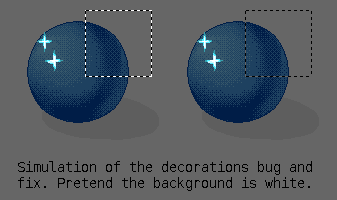
Basically, this happened because we draw our decorations onto the OpenGL canvas with a QPainter. Because QPainter nor QColor has any concept of what space it is drawing in, it doesn’t know to convert from sRGB to the rec2100pq format we’re using for the HDR canvas. We also have the issue that sometimes, colors aren’t in sRGB, but rather should represent a color from the image. Previously, we could assume that if the display was wide gamut, we didn’t need to adapt the decorations, or treat them differently from image colors, so we just treated them as the same thing, and drew the colors straight onto the display color space.
Now, the only place that knows how to handle image colors properly, applying all the OCIO config, etc, as well as having information to convert sRGB to the canvas space is the display color converter inside the canvas. This one has an extra simplified interface, called the color display renderer. Most of the work to fix this was to add functions to this renderer interface to convert colors (and images) and finally funnel the renderer through all canvas decorations. This was about 130 changes in the end.
Most of them were just plain conversions from sRGB to canvas space, but the color picker had to use the actual image color, as did the preview for the transform tool. Nor everything had to be converted on the fly. In some cases, like the vector tools, we have a set of colors we reuse, so those were added to the display renderer to be converted as a single struct of colors. Then, there’s the on canvas toolbars, like for the selection tools. These just use QPalette colors, which was solved in a similar manner, with the display renderer keeping a version of the current palette, but converted to the canvas space. At some point, we might need to do the same with KColorScheme, except that this class doesn’t have a way to change colors inside of it. Not sure what the best solution here is, as Krita needs to control the conversion function (in case of wide-gamut, etc).
Then, there were the reference images. Reference images are drawn on the side of the canvas in Krita. While fixing them was easy enough, I went a little further: Enabling HDR and wide gamut on the reference images. This was a little bit ambitious, as it required converting between QColorSpace and our similar class, KoColorProfile (a KoColorSpace, if you’re curious, is a KoColorProfile and a bit depth, as KoColorSpace has a whole bunch of per-model+bit-depth functions to wrangle pixels).
This conversion isn’t too hard, because QColorSpace can read and return iccprofiles, and KoColorProfile can do the same. However, for rec2100pq in particular, we will want to return a profile of our own. Same with sRGB. So what happens before we try to load the icc profile is that we test the transfer and the like, and funnel the values into our profile searching system. This system was created to handle ITU CICP values (basically a standardized set of enums for transfers and colorants), and was already extended with the known quantities outside of that (Adobe RGB, ProPhoto), so it can handle all the predefined transfers and colorants QColorSpace supports and find the relevant profile before trying to create it.
Now, when we load a reference image, and the image is RGB, Krita will convert it to a QImage, but set the colorspace to use that RGB space. The exception is when the image is floating point, in which case it’ll be converted to rec2100pq, because our reference images are eventually stored as PNG, and PNG cannot handle floating point. Then, when we start drawing the reference images, we first ensure the QImage QPaintDevice has its QColorSpace set to use the canvas colorspace. When drawing, we test the color space of the device, and the colorspace of the reference image, and then do the conversion to the canvas space before drawing.
And it works. I’m pretty pleased with this, because we have a bunch of other places we still draw with QPainter that might be useful to color manage, with the most notable one being the vector shapes. I hope we’ll be able to tackle that in the near future.
Improving the color management page
This was basically setting a little widget to show the color space data we get from wayland. Wayland sends us two types of information: The preferred color space, and the mastering display data. The former is the space wayland suggests that we send data in for the least amount of color conversions. The second is a little bit more weird. The mastering display color volume in HDR terms is a bit of metadata to indicate the gamut of the display that the image was finalized on. The idea being that this info can help guide the gamut mapping process by indicating in what range the important contrasts are.
In practice, what wayland is sending here is the color volume of the display the current window is on. I think this is so that we can send that data right back when we’re sending HDR data for the image that is being authored on that display.
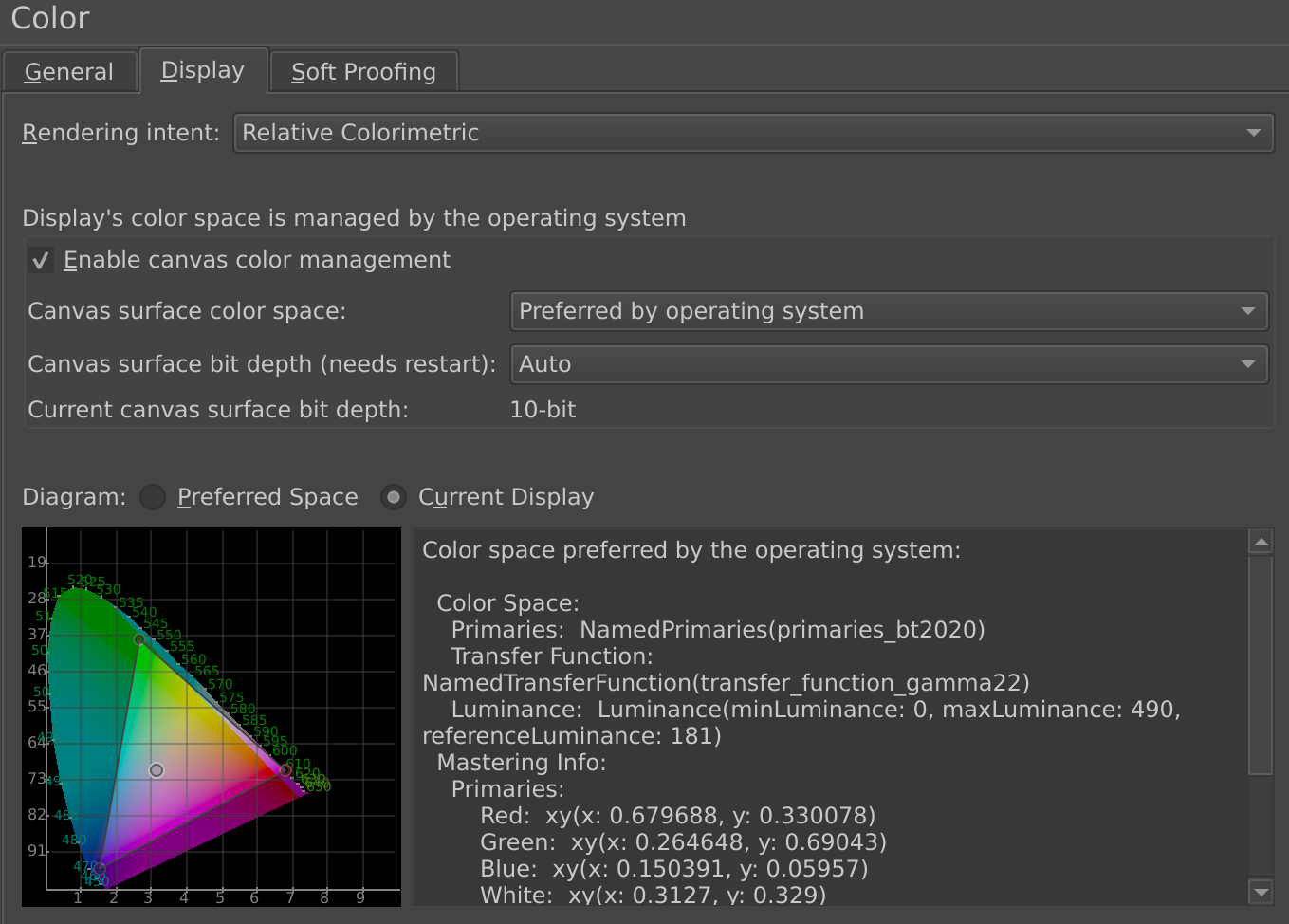
So, I made the XY CIE Tongue widget display these spaces with a toggle to switch between the preferred and current display gamut, and an auto update when the preferences switches screens. It might seem small, but one of the reasons I ported the CIE tongue widget over from Digikam all those years ago is because I do feel it is much more friendly to be able to see the actual gamut instead of having to interpret magic numbers and names.
Making the Histogram handle floating point
Our histogram docker was limited to [0 1], which isn’t very useful when working in linear floating point, so I wanted to fix that. So, a histogram in Krita is made by taking a vector of integers, initializing that with 256 values, and then going over each color and incrementing the value that is associated with the value of the pixel. You then do this per-component, to get a view of where the pixel values are per-channel.
What needed to be added here was that we now first test all the pixels for the maximum possible component value. Then, afterwards we divide the range of 0 to maximum by 256, and use that to sort the pixel values into. This means that as the image gets a bigger range, the precision of the histogram decreases, but as far as I know its output should still be statistically relevant.
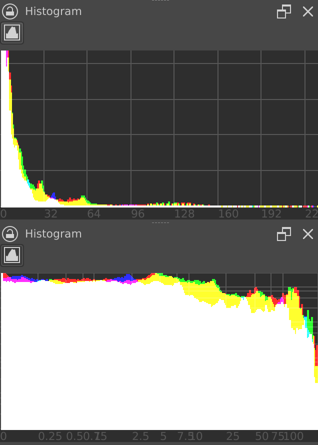
Of course, in really wide range images, the range becomes a little meaningless. Therefore, it was decided to add a toggle to switch into logarithmic mode as well. For this, to keep the precision sensible, it needs to sample a separate logarithmic vector during pixel sampling. This has the added benefit that switching between linear and logarithmic is instantaneous.
Then I spend some time tweaking the graph and adding numbers at the bottom.
One thing I’m a little worried about though: The log grid is using log10. But with HDR there’s a concept of stops, which is log2. And I’m wondering if I should switch the logarithmic mode to log2 instead of log10, but at the same time, I’ve never seen log2 graph paper.
Vector Cursors
This has nothing to do with HDR, but I also converted all the cursors to SVG. This was something I did when there was a lull in the text work last year, because my screen is also a high dpi screen, and the cursors in X11 were tiny. So, I spend some time redrawing all the cursors, and then load them with QIcon(file.svg).toPixmap(width, height) to get a display scaled pixmap to use with QCursor. Of course, this then got delayed because there were issues with hot-spot offset and Android, and then I had to return to the text work. I managed to get back to this recently and finalize it.
I’m kinda happy, because between the vector cursors, the color managed canvas decorations and the fact canvas decorations get scaled (something I did… two, three years ago), everything we can draw on the canvas now looks good on modern displays.
Next up is going to be digging into the weeds of HDR metadata.
